WAVE EDITOR / RECORDER
Edison 
Edison is a fully integrated audio editing and recording tool. Edison loads into an effect slot (in any mixer track) and will then record or play audio from that position. You may load as many instances of Edison as you require in any number of Mixer Tracks or Effects slots. To open Edison press Ctrl+E in a Sampler Channel, or load from the effects menu into mixer track/s.
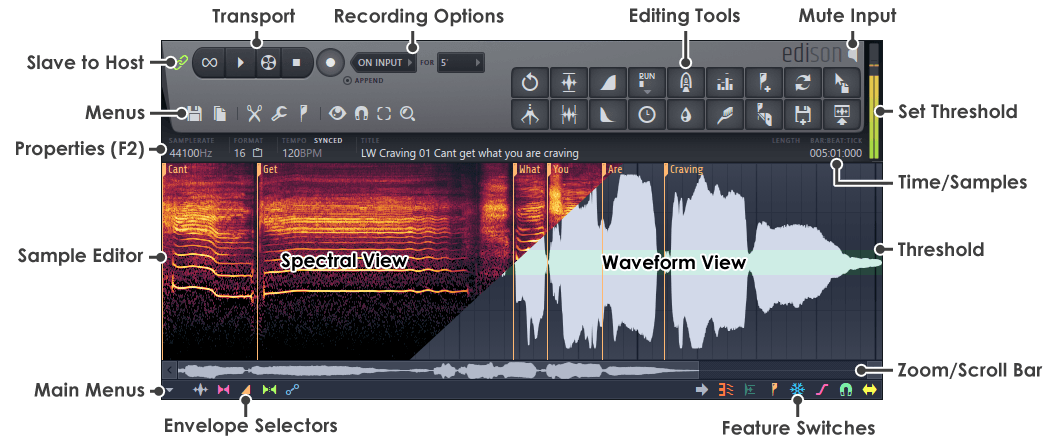
Transport Controls
Recording Options
Menu Buttons
Sample Edit Functions
Special Controls
Peak Meter
Sample Edit Window
Main Menu
Envelope Selector
Feature Switches
These switches vary, depending on the Edit mode, from left to right:

 |
Auto scrolling – When the sample is zoomed this enables or disables automatic scrolling. |
 |
Display mode – Swap between waveform and spectrum display. There is also a dual view option. |
 |
Noise Threshold – Enables or disables the threshold display (green horizontal band). Adjust the level by Left-clicking the Edison peak meter. |
 |
Regions – Enables or disables the region marker display. A region is defined by a pair of region markers. |
 |
Freeze – Prevents any changes to the sample. The cursor becomes an X in freeze mode. In Freeze mode you cannot edit; you can only hover to read amplitude and position values in the Hint Bar. 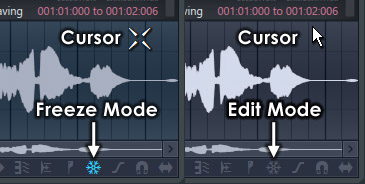 |
 |
Click free editing – Performs a short fade-in / fade-out on selected, cut, and processed regions to reduce clicks. |
 |
Envelope draw mode – Allows freehand envelope drawing when in envelope mode. |
 |
Snap – Enables or disables snapping. Applies to envelopes and sample edit functions. |
 |
Slide – Slides the selected envelope control point and all following points without changing their relative spacing. |