INSTRUMENTS / GENERATORS
Fruity SoundFont Player 
The SoundFont Player loads and plays SF2 SoundFont banks — a sample format created by Creative Labs and EMU Systems in the mid-1990s for the Sound Blaster AWE and Live! series of audio cards. SoundFonts became popular because they allowed musicians to build custom multisampled instruments that could be played in real time on affordable consumer hardware. The format remained widely used through the early 2000s and many free acoustic and General MIDI style instrument banks were . Alternatives include DirectWave that can play SoundFonts or FLEX contains a wide range of included acoustic and traditional multi-sampled instruments were released during this period.
TIP: SoundFonts are still valued today for their simple structure, small file sizes and the huge library of free instruments created over the years. Many musicians used SF2 banks for game music, early PC production and General MIDI playback throughout the late 1990s and early 2000s. If you are aiming for an authentic 1990s or early-2000s sound, SoundFonts are an excellent source, as many classic banks from that era are still available. SoundFont Player lets you load these SF2 files directly in FL Studio. A quick search for 'free SoundFonts' will give you plenty of options - Start here!
Video Tutorial
Parameters
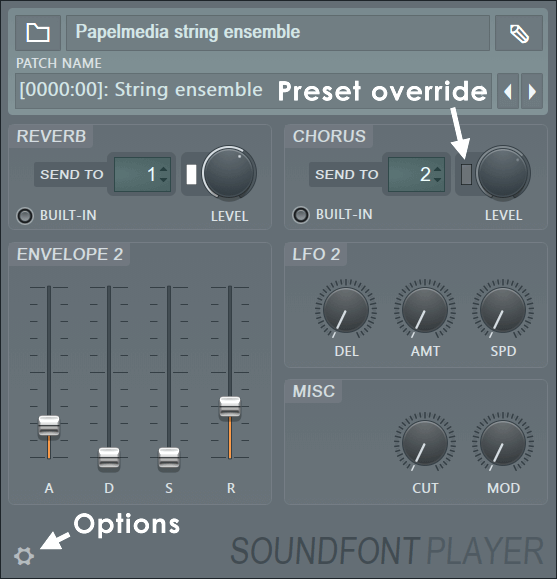
- Load SoundFont (File icon) - This button is located in the top left corner of the interface. Click it and select a SoundFont2 instruments/drum kits bank file to load (*.sf2).
- Edit SoundFont (Pencil icon) - This button is located in the top right corner of the interface. Click it to open the current SoundFont bank in a SoundFont editor to edit to instrument definitions. The first time you run this feature, the SoundFont player will ask you to browse and select a SoundFont Editor to be used for this button. We recommend the Polyphone Soundfont Editor.
- Loaded Soundfont - Shows the name of the loaded SoundFont or SoundFont Bank.
- Patch (Bank:Patch) - Click here to change the preset. Not all SoundFonts contain more than one preset, but many do!
Reverb
The SoundFont Player includes an integrated Reverb (Built-In) or you can use a Mixer Send track to add effects.
- Send To - Select a Mixer Track Send to use for Reverb send effect. (Right-Click) the control to select a Mixer Track. NOTE: You can use this send track for any effects processing, the label is for convenience when used with an external send.
- Send Amount knob - Controls the level of the audio sent to the Send Effect. More is more!
- Preset override (switch next to knob) - Select this to adjust the Send Level to the built-in effect instead of sending to the Mixer.
- Built-In - Use the internal Reverb effect.
Chorus
The SoundFont Player includes an integrated Chorus (Built-In) or you can use a Mixer Send track to add effects.
- Send To - Select a Mixer Track Send to use for Chorus send effect. (Right-Click) the control to select a Mixer Track. NOTE: You can use this send track for any effects processing, the label is for convenience when used with an external send.
- Send Amount knob - Controls the level of the audio sent to the Send Effect Mixer Track. More is more!
- Preset override (switch next to knob) - Select this to adjust the Send Level to the built-in effect instead of sending to the Mixer.
- Use Built-in - Use the internal Chorus effect.
Envelope 2
Use these ADSR controls to override the Volume Envelope settings used in the SoundFont patch (see NOTE):
- Attack (A) - Initial volume ramp-up. If the underlying sample does not have a fast attack transient this control may not have much of an effect.
- Decay (D) - Fall in level from the initial peak.
- Sustain (S) - Level while the note/key is held.
- Release (R) - Volume ramp-down after the note/key is released. If the underlying sample is not looped, or is short this control may not have much of an effect.
NOTE: As SoundFonts include a default ADSR envelope defined by the original bank developer. When you set any ADSR control to its minimum value, SoundFont Player defers to the SoundFont's built-in envelope for that stage. Because these defaults vary between banks, the lowest setting may produce a result very different from the minimum you expect! This is why the section is called Envelope 2 as it is the second Envelope available for the SoundFont.
LFO2 Section
Override the Pitch LFO (Sine wave Low Frequency Oscillator) used in the SoundFont patch:
- Predelay (DEL) - Delay before the LFO starts. Long delays can be used to add Pitch Vibrato at the end of held notes for example.
- Amplitude (AMT) - The magnitude or extent of the Pitch modulation. NOTE: Fully left is OFF. Vertical (12 O'Clock) is zero amplitude with left and right being negative and positive phase LFO waveforms respectively.
- Speed (SPD) - Rate of Pitch Modulation.
NOTE: Keep these knobs turned fully left to use the original patch values.
Misc Section
Override the Filter Cutoff used in the SoundFont patch:
- CUT - Controls the Filter Cutoff of a Low-Pass filter.
- MOD - Modulates the Filter Cutoff Frequency.
NOTE: Keep these turned fully left to use the original patch values.
Options
- Resampling - Live and Render quality options. SoundFonts are sample-based, and some of the samples may be transposed as you play them up and down in pitch. When samples are transposed from their original (unity) pitch artifacts can creep into the sound. These options allow you to decide if you are all vintage and crunchy or pristine and modern. NOTE: These options only apply to transposed samples.
- Crunchy - All the vintage goodness of that 1994 digital sound (linear resampling).
- Standard - The default. Better than you got in 1994, stop complaining!
- HQ - So you are fussy. Go ahead.
- Extreme HQ - Can you hear the difference?
- Program mode - These options are for exceptional cases where sounds do not play as expected. You can use them to choose if samples in a patch will play as a 'one-shots' (play to the end regardless of note off) or play as an 'instrument' where the sample stops playing at the note end (or MIDI keyboard key is released).
- Automatic - As set by the patch parameters (default).
- Instrument - Samples are played until note-off is sent (or keyboard key released).
- Drums - Samples are played to the end as 'one-shots' with note-off ignored.
- Velocity filter cutoff - Enable/Disable the default Velocity Filter Cutoff modulation to play SoundFonts with or without velocity filter cutoff effects.
- EMU volume envelope - Classic EMU Volume Envelope curve as used by the EMU10K1 hardware for which SoundFonts were originally designed.
- Fix unexpected levels (Ignore sample-layer links) - Switch this when troubleshooting unexpected levels in SoundFonts. Some SoundFonts re-use sample layers to create stereo effects, instead of the usual multiple layers approach. This may cause some patches to play unexpectedly quiet or loud and may affect just part of the keyboard range.